Introduction
About this manual
This manual is intended for administrators of the cryostorage chamber. The user interface should be fairly self-explanatory, however, even the user might want to read the chapter on Tips & Tricks.
Purpose
The purpose of the cryostorage chamber is to store samples after sample preparation and imaging and before the NanoSIMS is ready to take these samples for analysis. Of course, samples can also be stored between NanoSIMS runs.
Storage takes place in ultra-high vacuum (UHV) and at liquid at temperatures at around 100 K. There are a total of eight storage locations available.
The cryostorage chamber is integrated such that a failure of an individual part does not destroy other component of the chamber.
Overview
Instruments and control flow
╭ ─ ─ ─ ─    ╭ ─ ─ ─ ─ ─ ─ ╮   ╭ ─ ─ ─ ─ ╮   ╭ ─ ─ ─ ─ ╮   ╭ ─ ─ ─ ─    ╭ ─ ─ ─ ╮
  Baking │    Cooler safety     Flowmeter       Light        Valves │      VCT
╰ ─ ─ ─ ─    ╰ ─ ─ ─ ─ ─ ─ ╯   ╰ ─ ─ ─ ─ ╯   ╰ ─ ─ ─ ─ ╯   ╰ ─ ─ ─ ─    ╰ ─ ─ ─ ╯
     △              │               │             △            △            △
     │              │               └──┐  ┌───────┘            │            │
     │              └────────────────┐ │  │ ┌──────────────────┘            │
     └─────────────────────────────┐ │ │  │ │ ┌─────────────────────────────┘
                                   │ ▽ ▽  │ ▽ ▽
                                 ╭──────────────╮
                                 │Control board │
                                 ╰──────────────╯
                                         ▲
                                         ┃ Poststation (USB)
                                         ▼
                                   ╔══════════╗
                     USB           ║   Host   ║          LAN
          ┌───────────────────────▷║----------║◁─────────────────────┐
          │                        ║reTerminal║                      ▽     Moxa
          │                        ╚══════════╝          ╭─────────────────────╮
          │                                              │░░░░░░░░░░░░░░░░░░░░░│
          │                                              │░░░┌ ─ ─ ─ ─ ─ ─ ┐░░░│
          │                                              │░░░   Ion pump    ░░░│
          │                                              │░░░└ ─ ─ ─ ─ ─ ─ ┘░░░│
          │                                              │░░░┌ ─ ─ ─ ─ ─ ─ ┐░░░│
          │                                              │░░░  Cryocooler   ░░░│
          │                                              │░░░└ ─ ─ ─ ─ ─ ─ ┘░░░│
          ▽                                              │░░░┌ ─ ─ ─ ─ ─ ─ ┐░░░│
 ╭ ─ ─ ─ ─ ─ ─ ─ ─ ╮                                     │░░░     Gauge     ░░░│
     Temperature                   ╭ ─ ─ ─ ─ ─ ╮   LAN   │░░░│ controller  │░░░│
 │   controller    │                 Pumpstand  ◁───────▷│░░░ ─ ─ ─ ─ ─ ─ ─ ░░░│
   (instrumentRs)                  │  (OPCUA)  │         │░░░░░░░░░░░░░░░░░░░░░│
 ╰ ─ ─ ─ ─ ─ ─ ─ ─ ╯                ─ ─ ─ ─ ─ ─          ╰─────────────────────╯
                                                                 (instrumentRs)
Above diagram shows an overview of the connected devices and the control flow. The host computer, a reTerminal 10“ touch screen device based on a RaspberryPi compute module sits at the center of control. It runs the host software, a touch interface (based on Slint) that the user can use to interact with the cryostorage chamber.
The control board, our in-house designed PCB to control various devices, contains a Raspberry Pi Pico2 that serves as the MCU. This MCU runs the firmware that communicates (1) with the connected devices and (2) via Poststation with the host computer.
Furthermore, the host computer is also connected via USB to a Lakeshore 336 temperature controller.
The rest of the instruments, i.e., the ion pump controller, cryocooler, gauge controller, and pumpstand are connected via LAN to the host. While the pumpstand is directly connected via an ethernet cable, the other three instruments are connected to a MOXA NPort 5650-8-DT. Details on the LAN and MOXA configuration can be found in hardware setup.
While the pumpstand serves an OPCUA server that we communicate with directly,
all other directly connected instruments that do not hang on the control board
use in-house drivers that are based on
instrumentRs.
Terminology
- Controller: The control board designed by us that runs via a Raspberry Pi Pico2.
- Firmware: Refers to the software that runs on the controller board (Pico2).
- Software: Refers to the
hostsoftware that runs on the Raspberry Pi ReTerminal.
Hardware Setup
This section summarizes briefly the hardware setup, i.e., how instruments are connected to the host computer and how they are configured.
Host computer - ReTerminal
Ethernet configuration
- Static IP: 192.168.1.1
- Subnet mask: 255.255.255.0
Scripts that are used on the ReTerminal to hide the top menu bar,
aid in properly displaying the GUI can be found in the repo’s reterminal folder.
Moxa
The Moxa we are using is a NPort 5650-8-DT.
IP setup:
- Static IP: 192.168.1.2
- Subnet mask: 255.255.255.0
The following ports are configured:
-
Port 1:
- Agilent 4UHV Ion pump controller
- Serial setup: 38_400, 8, N, 1
- Mode: TCP Server
- IP Port: 4001
-
Port 2:
- Pfeiffer Omnicontrol 200 gauge controller
- RS-485, 2wire setup: 9_600, 8, N, 1
- Moxa pull-up resistors on both lines set to 1 kOhm (see Appendix B of Moxa Manual)
- Mode: TCP Server
- IP Port: 4002
-
Port 3:
- Sunpower CryoTel GT Cryocooler
- Serial setup: 4_800, 8, N, 1
- Mode: TCP Server
- IP Port: 4003
Pfeiffer HiCube Pump stand
The HiCube is connected to the second LAN port of the Moxa. The host computer is connected to the other LAN port of the Moxa. With the static IP setup as we currently have it, the HiCube can be accessed from the host computer, i.e., the Moxa acts as a switch.
- Static IP: 192.168.1.100
Note
The firmware of the HiCube can only be updated by connecting the HiCube to the internet. This has to be done actively if necessary, as no internet access is provided via the ReTerminal.
Lakeshore 336
The Lakeshore 336 is connected to the ReTerminal via a USB port.
Control board
Our own control board is connected via USB to the ReTerminal. The host software talks to it via poststation. The poststation TUI can also be used to observe broadcasts and test commands manually.
User interface
Configuration
Workflows
Abbreviations and notation
We use the following abbreviations for all flowcharts:
- pch: pressure in sample chamber.
- ptr: pressure in transfer system.
The following symbols are used to describe the workflow:
  flowchart TD
    A[I am the task that should be accomplished]-->N
    N@{ shape: paper-tape, label: "I am a notification"} --> B
    B-->|No|Y[/Abort - I am also a task/]
    B{{I perform an instant check}}-->|Yes|tim
    tim[/"**Wait XXmin**
        I wait for the XX minutes to expire and then just continue."\]
    check_for[\"**Check for XXmin**
        I wait for a given condition to be true and then continue.
        I can also time out without the check succeeding."/]
    tim --> check_for
    check_for --> |Timeout| Y
    check_for --> |True| XX
    XX[[I am another workflow]] -->|Success| Final
    XX -->|Failure| Y
    Final[/I perform a task/]
Open valves
This authorization is implemented in software. It checks the last read pressures and then goes through the following flowchart. Workflows that open valves go through this authorization as well.
  flowchart TD;
    A[Open transfer/pump valve]-->B{{0.01 < p<sub>ch</sub>/p<sub>tr</sub> < 100}};
    B-->|No| C{{p<sub>ch</sub> < 1e-5 mbar}}
    C-->|Yes| D{{p<sub>tr</sub> < 1e-5 mbar}}
    D -->|No| Y[/Refuse opening/];
    D-->|Yes| Z;
    B-->|Yes| Z[/Open valve/];
Close valves
This authorization is implemented in software and in hardware on the controller board (see safety section). Workflows that close valves go through this workflow as well.
  flowchart TD;
    A[Close transfer valve] --> B{{VCT authorization}};
    B -->|No| Y[/Refuse closing/];
    B -->|Yes| Z[/Close valve/]
Note
The pump valve can be closed without any checks.
Start cryocooler
  flowchart TD
    T[Start cryocooler] --> WS{{Water safety okay}}
    WS -->|No| Err[/Abort/]
    WS -->|Yes| BS{{Baking deactivated}}
    BS -->|No| Err
    BS -->|Yes| PCH{{p<sub>ch</sub> < 1e-5mbar?}}
    PCH -->|No| Err
    PCH -->|Yes| Ok[/Start cryocooler/]
Note
Stopping the cryocooler does not require a workflow as nothing needs to be checked.
Start baking
  flowchart TD
    T[Baking chamber] --> CC{{Cryocooler off?}}
    CC -->|No| Err[/Abort baking/]
    CC -->|Yes| P{{p<sub>ch</sub> < 1e-5mbar?}}
    P -->|No| Err
    P -->|Yes| IsOP{{Is pump valve open?}}
    IsOP -->|No| OP[[Open pump valve]]
    IsOP -->|Yes| Ok
    OP -->|Failure| Err
    OP -->|Success| Ok[/Start baking/]
Note
Baking can be stopped without any checks.
Venting and pumping the system
Venting and pumping the system are two workflows that are fairly complicated. In comparison with above simpler workflows, they compare multiple timers that can check for a condition or just wait for the timer to expire. Both main workflows are based on several sub workflows, which are described further down.
Note
Pump valve authorization
These workflows do not use the workflow to open the pump valve. Instead, they open the pump valve directly if the authorization is there. Here, blocks with “Pump valve authorization” check for the same authorization as is the case in an open pump valve workflow.
Vent cryostorage chamber
All variables can be specified and changed in the configuration file. These variables are:
- Minimum sample temperature to continue.
- Wait time for opening the vent valve.
The limits that are given in the “No valve authorization” block cannot be set. These limits are taken from the definition of the valve opening authorization.
The user has the possibility to cancel the wait time at the end. If this is chosen, the timer will simply stop early and continue with the workflow, i.e., it will close the vent valve.
  flowchart TD
    T[Vent] -->
    N2Not@{ shape: paper-tape, label: "Fill N<sub>2</sub> balloon."} -->|Next| CC
    CC{{Cryocooler off?}}
    CC -->|No| Err
    CC -->|Yes| TSmp
    TSmp{{Sample temperature >280K? }}
    TSmp -->|No| Err
    TSmp -->|Yes| IsOP
    IsOP{{Is pump valve open?}} -->|No| OPAuth
    OPAuth{{Pump valve authorization?}}
    OPAuth -->|Yes| OP
    OPAuth -->|No| PCL
    OP[/Open pump valve/]
    OP --> StIP
    IsOP -->|Yes| StIP
    PCHW -->|Success| VVT
    StIP[/Stop ion pump/] --> StPP
    StPP[/Stop primary pump/] --> OVV
    OVV[/Open vent valve/] --> VVT
    VVT[/Wait 25min\] --> CVV
    subgraph Level3 [Final]
    CVV[/Close vent valve/]
    Err[/Abort/]
    end
    subgraph Level2 [No valve authorization]
    %% Branch where pch >> ptr
    PCL -->|No| PCH{{p<sub>ch</sub>/p<sub>tr</sub> > 100}}
    PCH -->|No| Err
    PCH -->|Yes| PCHW
    PCHW[[p<sub>ch</sub> >> p<sub>tr</sub>]]
    %% Branch where pch << ptr
    PCL{{p<sub>ch</sub>/p<sub>tr</sub> < 0.01}} -->|Yes| PCLW
    end
    PCLW -->|Failure| Err
    PCLW[[p<sub>ch</sub> << p<sub>tr</sub>]] -->|Success| StIP
    PCHW -->|Failure| Err
Pump cryostorage chamber
The variables that can be adjusted in this workflow are two durations.
- Maximum time allowed for primary pump to pump the chamber down to <10-5mbar.
- Duration to wait before the ion pump is turned on. If this waiting time is canceled by the user, the workflow will finish but not turn on the ion pump.
Again, as for the venting workflow, the pressure limits to determine if we have pump valve opening authorization are the same as the ones for valve authorization.
  flowchart TD
    T[Pump] --> IsOP
    IsOP{{Is pump valve open?}} -->|No| OPAuth
    OPAuth{{Pump valve authorization?}}
    OPAuth -->|No| PCL
    OPAuth -->|Yes| OP
    OP[/Open pump valve/]
    OP --> PP
    IsOP -->|Yes| PP
    PP[/Start primary pump/] --> PCHK
    PCHK[\"Check for 40min
        Condition: p<sub>ch</sub> < 1e-5mbar"/]
    PCHK -->|Timeout| StPP[/Stop primary pump/] --> Err
    PCHK -->|True| IPTIM
    IPTIM[/Wait 2h\] --> IP

    subgraph Level3 [Final]
      IP[/Start Ion Pump/]
      Err[/Abort/]
    end

    subgraph Level2 [No valve authorization]
      %% Branch where pch << ptr
      PCL{{p<sub>ch</sub>/p<sub>tr</sub> < 0.01}} -->|Yes| PCLW
      %% Branch where pch >> ptr
      PCL -->|No| PCH{{p<sub>ch</sub>/p<sub>tr</sub> > 100}}
      PCH -->|No| Err
      PCH -->|Yes| PCHW
      PCHW[[p<sub>ch</sub> >> p<sub>tr</sub>]]
      CVV[/Close vent valve/]
    end
    PCLW -->|Failure| Err
    PCLW[[p<sub>ch</sub> << p<sub>tr</sub>]] -->|Success| PCHK
    PCHW -->|Failure| Err
    PCHW -->|Success| CVV --> OP
Equalize chamber pressure
In the case where a valve cannot be opened, these workflows to equalize the chamber pressure can be run. These workflows are in fact important parts in the venting and pumping workflows.
Chamber pressure low
If the chamber pressure is too low, i.e., if \[ \frac{p_\text{ch}}{p_\text{tr}} < 0.01, \] the transfer system must first be pumped before authorization to open valves can be given.
The limits on the pressure checks that we fulfill in this flowchart are again the same as for authorizing the pump valve to be opened. The only configurable quantity is the timer, which is in the flowchart set to 20 minutes.
  flowchart TD
    WF[p_<sub>ch</sub> << p_<sub>tr</sub>] --> PP
    PP[/Start primary pump/] --> TIM

    TIM[\"Check for 20min
        p<sub>ch</sub>/p<sub>tr</sub> > 0.01
        OR
        (p<sub>ch</sub> < 1e-5mbar AND
        p<sub>tr</sub> < 1e-5mbar)"/]
    TIM -->|Timeout| SPP[/Stop primary pump/] --> Err
    TIM -->|True| OP

    subgraph Level3 [Final]
        OP[/Open pump valve/]
        Err[/Abort/]
    end
Chamber pressure high
If the chamber pressure is too high, i.e., if \[ \frac{p_\text{ch}}{p_\text{tr}} > 100, \] the transfer system might be currently pumped and must first be vented.
Again, all pressure conditions in below flowchart come from the open valve authorization. The only adjustable setting is the timer.
Note
The first steps in the following diagram turn off both pumps. These might in fact not even run at the moment. However, turning them off sets their status to off, i.e., this process does not toggle their state. Thus, setting these to off is valid when calling this workflow from pumping and from venting.
  flowchart TD
    PR[p<sub>ch</sub> >> p<sub>tr</sub>] --> StopIP
    StopIP[/Stop ion pump/] --> StopPP
    StopPP[/Stop primary pump/] --> OVV
    OVV[/Open vent valve/] --> TIM

    TIM[\"Check for 20min
      p<sub>ch</sub>/p<sub>tr</sub> < 100"/]
    TIM -->|Timeout| CVV[/Close vent valve/] --> Err
    TIM -->|True| Ok

    subgraph Level3 [Final]
      Ok[/Open pump valve/]
      Err[/Abort/]
    end
VCT
Handshake
The VCT control box has a DB-15 plug that usually connects to an SEM. In our case, this DB-15 plug is connected to the control board.
Note
The setup below is equal to what Zeiss SEMs use to connect to the VCT. Thus, this handshake is also known as the Zeiss handshake.
                                  VCT DB15    │         Control board
                                 ╭─────────╮
                                 │░░░░░░░░░│  │
                                 │░░┌───┐░░│              Gate open
                         ┌───────┼──┤ 1 │░░│  │         ┌────────────┐         R=∞
           Output      \         │░░└───┘░░│            │            │
      Gate closed       \        │░░░░░░░░░│  │         │            │
                         \       │░░┌───┐░░│            │            │
                         └───────┼──┤ 2 │░░│  │   ──────┘            └──────   R=0
                                 │░░└───┘░░│
                                 │░░░░░░░░░│  │
                                 │░░░░░░░░░│
                                 │░░┌───┐░░│  │          VCT attached
                         ┌───────┼──┤ 4 │░░│           ┌──────────────┐        R=∞
           Output      \         │░░└───┘░░│  │        │              │
 Attach procedure       \        │░░░░░░░░░│           │              │
                         \       │░░┌───┐░░│  │        │              │
                         └───────┼──┤ 5 │░░│      ─────┘              └─────   R=0
                                 │░░└───┘░░│  │
                                 │░░░░░░░░░│
                                 │░░░░░░░░░│  │
                        Vcc      │░░┌───┐░░│
                         ├───────┼──┤ 9 │░░│  │   ────┐                ┌────   R=∞
            Input                │░░└───┘░░│          │                │
    Chamber ready                │░░░░░░░░░│  │       │                │
                                 │░░┌───┐░░│          │                │
                         ├───────┼──┤ 15│░░│  │       └────────────────┘       R=0
                        GND      │░░└───┘░░│                ready
                                 │░░░░░░░░░│  │
                                 ╰─────────╯
                                              │
Above figure shows a schematic of the DB-15 plug on the left and the respective signals to/from the control board on the right. From the point of view of the control board, the connections can be described as following:
| Pins connected | Control board | Function |
|---|---|---|
| 1 and 2 | Input | Check if the gate is open. |
| 4 and 5 | Input | Check if the VCT is attached. |
| 9 and 15 | Output | Signal that the chamber is ready. |
Gate open
Pins 1 and 2 represent the status if the VCT’s gate vale is open or closed. If the gate valve is closed, these two pins are shorted. When the VCT however opens the gate vale, the switch between these two pins is opened and thus we measure an infinite resistance between them on the controller.
Attach procedure
Pins 4 and 5 represent the status of the attach procedure. If the VCT is detached, these two pins are shorted. Attaching the VCT however using the Leicha touchscreen opens the switch between these two pins and thus we read an infinite resistance on the control board.
Chamber ready
Pins 9 and 15 allow us to signal to the VCT, these pins are thus controlled by the control board. To signal readyness, the control board shorts these to pins together. If the switch between these two pins is opened, the VCT assumes the chamber is not ready for a transfer. It will then not allow the user to attach the shuttle to the dock.
Sample transfer procedure
In terms of a typical sample transfer, the following takes place in terms of the steps above:
- The chamber signals to the VCT that it is ready to transfer a sample by shorting pins 9 and 15.
- The VCT then allows the user to attach the shuttle by pressing the respective button on the touch screen.
- When the attach procedure starts, the resistance between pins 4 and 5 jumps to infinity, signaling to the control board that the attach procedure has started.
- Once ready, the VCT will open its gate valve. When this happens, the resistance between pins 1 and 2 will jump to infinity, signaling to the control board that the gate valve is open.
Important
This gate valve is open signal is used as the signal to not allow our transfer valve to close. More information on this safety and how it is implemented can be found in the System Safety section.
Safety
This section describes the hardware-side safeties that were implemented for the cryostorage chamber. These safeties are as far as possible implemented in the circuit design, meaning that they do not require firmware or software to properly work. Caveats to these limitations are discussed below.
Cryocooler safety
The cryocooler must not be run when there is no or insufficient cooling water. Thus, not allowing the cryocooler to start when powering it up and ensuring it powers down when cooling water is lost is crucial.
The cryocooler itself has two modes of operation:
- Computer control mode.
- Control via a digital input pin (so-called soft-stop mode).
If controlled via the digital input pin, the cryocooler runs as long as this input line is grounded, i.e., at 0V. If the input line is pulled up to 5V, the cryocooler enters the soft-stop mode and comes to halt.
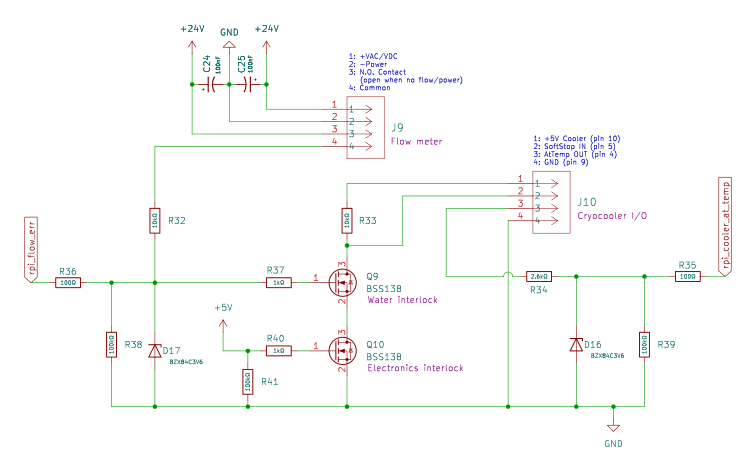
Above figure shows the wiring diagram for the cryocooler safety. The following symbols are important in below discussion:
- J9: Connector to the flow meter.
- J10: Connector to the cryocooler.
- Q9: Water interlock MOSFET.
- Q10: Electronics interlock MOSFET.
- R32, D17: Voltage divider to bring 24V from flow meter down to 3.3V for MOSFET gate and digital read.
- R33: Resistance between 5V supply from cryocooler and Soft-Stop pin.
On the cryocooler connector J10, pin 1 supplies the 5V that is used to turn off the cryocooler via the soft-stop (pin 2 on J10). In normal operation (all okay), the soft stop pin is connected to ground such that the voltage on this pin is 0V. This connection to ground passes through two MOSFETS, Q9 and Q10.
Water interlock
If the waterflow is high enough for running the cryocooler, 24V are supplied from pin 3 to pin 4 on the flow meter connector J9. These 24V pass through the voltage divider R32 & D17 and turn this voltage into 3.3V that closes the gate on MOSFET Q9. Thus, this MOSFET connect drain and source when the water flow is fine.
If the waterflow fails or is too low, pin 3 and 4 on J9 are not connected, the gate voltage on Q9 drops to 0V and opens the connection to ground between R33 and the soft-stop pin. This results in 5V being applied to the soft-stop and thus the cryocooler will stop.
Electronics interlock
The electronics interlock shuts down the cryocooler if power to the control board is lost.
If power to the control board is present and good, the 5V power supply is connected to the gate on MOSFET Q10, thus connecting the safe-stop pin 2 on J10 to ground.
If for some reason the power to the electronics is lost, the gate will be at 0V, open the connection to ground, and thus put the safe-stop pin at 5V and shut down the cryocooler.
Caveat
Above described hardware safety depends on the cryocooler being set to be controlled via the soft-stop mode. This control-mode is set by the host software.
To turn the cryocooler on, the host software simply sets the control mode to the soft-stop mode. If the waterflow is okay and the electronics is powered, this will pull the soft-stop pin 2 on J10 to ground and thus turn the cryocooler on.
To turn the cryocooler off, the host software must do two things:
- Set the control mode to computer control.
- Turn off the cryocooler.
If an error occurs between step these two steps, the cryocooler would now be on without being safety interlocked, as the control mode is set to computer control but the turn off signal has not been received. If unnoticed and the waterflow measurements fail, this could lead to cryocooler damage.
If setting the cryocooler state from the software fails, an error is logged and an error message is displayed. In the extremely unlikely case the error message cannot be displayed, the program will crash as a last resort and thus inform the user that something is wrong. Since a running cryocooler is audible, we feel that these safety measures are sufficient to ensure safe operations.
Transfer valve closing safety
If the VCT is open and the valves are open, it is possible for the VCT’s transfer arm to be inside the chamber and thus cross the cryostorage chambers transfer valve. The here implemented safety ensures that the transfer valve cannot be closed if a chance exists that the arm is in.
Unfortunately, we cannot directly access the state of the transfer arm from interfacing with the VCT. However, we can access the state of the two valves and see if they are open or closed, details are given in the VCT section.
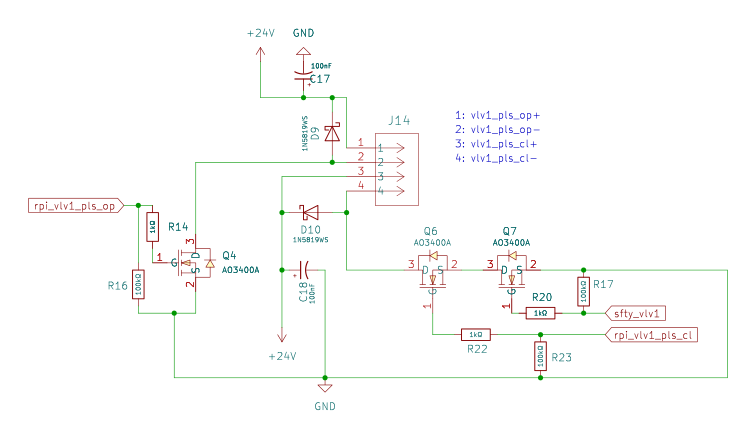
Above zoom in from the circuit diagram shows the relevant part for sending a close-valve signal to the transfer valve. The following components are important in the discussion below:
- J14: Connector to send open/close pulses to the transfer valve.
- Q6: MOSFET that sends the pulse.
rpi_vlv1_pls_cl: 3.3V output pin from MCU to send a close pulse to the transfer valve.- Q7: Safety MOSFET that prevents closing the valve if unsafe to do so.
sfty_vlv1: Signal from VCT.
To close the valve, 24V must be applied betwene pin 3 and pin 4 on J14 for a certain amount of time. In order for this pulse to actually applied, MOSFETS Q6 and Q7 must be closed, i.e., must have 3.3V on the gate pin. A user pressing the close button on the host software closes MOSFET Q6 for long enough to send the close pulse to the valve.
However, for this to be successful, MOSFET Q7 must also be closed. This MOSFET’s gate is directly connected to the VCT valve status signal. If the gate valve of the VCT is open, the gate on MOSFET Q7 is at ground and thus applying a voltage to MOSFET Q6 does not close the gate valve. If the VCT gate valves are closed it is impossible for the arm to reach across the transfer valve. In this case (VCT detached) the gate on Q7 is at 3.3V and thus the MOSFET is closed.
Tips & Tricks
Below are some tips and tricks that are not directly visible from the GUI.
Sample management
- You can swap the position of two samples by simply dragging and dropping one sample onto another. This swaps their position. If the second sample position is empty, it still swaps the position and the first sample position is now empty.
- To delete a sample, simply click on the position, then click “Clear” and “Ok”.
- If you add a new sample or change the position of a sample,
the current sample positions are automatically saved in the configuration file.
Furthermore: Everytime a sample is changed/added/moved, a timestamped backup
of the previous configuration file is saved in the
archivefolder under$HOME/.cryostorage. This backup is meant as a last-resort in case samples get mixed up.
Pressure, temperature history
While the plots in the GUI only show the last 24h, all recorded data are stored
in the $HOME/.cryostorage folder on disk as csv files.
Over time, pressure and temperature histories are rotated into the archive folder
and not kept forever.
Logs
If communication with any of the instruments fails or returns bad data,
the incident is logged.
The last 100 log entries can be found in the settings tab.
Logs are also stored in the $HOME/.cryostorage folder on the disk.
They are rotated over time into the archive folder and not kept forever.